
Imagine the heavy silence that follows a vital pitch when a client in London or New York simply can’t hear your team’s response. It’s a moment of friction that costs more than just minutes. It erodes the professional image you’ve built for your Irish business. You aren’t alone in this frustration. Many professionals find themselves troubleshooting video conferencing audio issues during the first ten minutes of every call, dealing with inconsistent performance that varies from one boardroom to the next.
We agree that technical hurdles shouldn’t dictate the flow of your corporate communication. This guide promises to move you beyond temporary fixes by introducing a systematic approach to diagnosing and resolving critical audio failures. You’ll learn how to achieve zero-latency audio and crystal clear voice pickup, even in large, complex environments. We’ll provide a repeatable diagnostic process that empowers your internal teams to maintain high standards across your entire organisation, ensuring every meeting starts on time and sounds impeccable.
Key Takeaways
- Adopt a “Signal Chain” framework to track audio from the microphone to the recipient. This ensures no component in the journey is overlooked during a technical failure.
- Master a 30-second triage for troubleshooting video conferencing audio issues to instantly determine if the fault lies with your local hardware or the remote participant’s connection.
- Identify the technical signatures of jitter and packet loss. Recognising these allows you to resolve “choppy” audio and maintain stable communication across your corporate network.
- Address the “Glass Box” acoustic challenges of modern Dublin office spaces by combining Digital Signal Processing with strategic physical treatments to eliminate intrusive echo.
- Calculate the “Cost of Friction” within your organisation to determine when to transition from consumer devices to high-performance, professional-grade AV solutions.
A Systematic Framework for Troubleshooting Video Conferencing Audio Issues
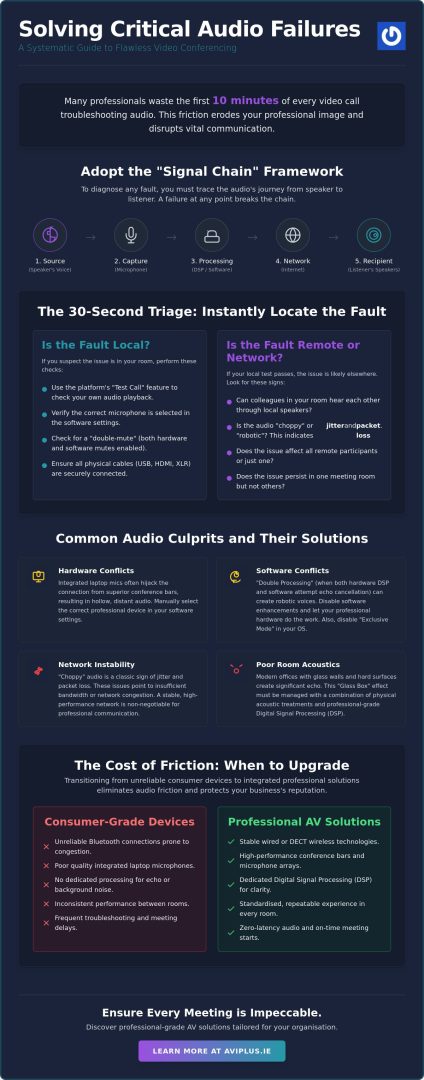
Effective audio management begins with a shift in perspective. Instead of viewing a silent boardroom as a singular failure, professional IT teams treat it as a break in the “Signal Chain.” This methodical approach tracks the sound wave from the speaker’s mouth through the microphone, the interface, the local software, the network, and finally to the recipient. By visualising this journey, troubleshooting video conferencing audio issues becomes a logical process of elimination rather than a frantic series of guesses.
A 30-second triage is essential for maintaining meeting momentum. You must quickly identify whether the fault is local or remote. If your colleagues in the room can hear each other through the local monitors but the client in Cork cannot, the issue likely resides in the software or network layer. Documenting these instances is vital. If Room 4 consistently suffers from “choppy” sound whilst Room 2 remains perfect, you’ve identified a pattern that points toward specific hardware or network port failures rather than a global software glitch.
We often see teams rely on the habit of “turning it off and on again.” Whilst a reboot can clear a temporary driver conflict, it rarely addresses the root cause. It is a symptom-fix that masks underlying infrastructure weaknesses. A deep understanding video conferencing technology reveals that recurring failures usually stem from configuration mismatches or bandwidth bottlenecks that require permanent resolution. Establishing a repeatable diagnostic process ensures your team isn’t just fixing the meeting, but fixing the room itself.
The Local vs. Remote Diagnostic Test
Most platforms, such as Microsoft Teams and Zoom, offer a “test call” or “loopback” feature. Use these tools to isolate your hardware. If you can hear a clear recording of your own voice, your local microphone and software settings are functioning. Check that the correct input device is selected in the application settings; integrated laptop microphones often hijack the connection from professional conference bars. You should also verify if a “double-mute” is occurring, where the hardware button on the table is red whilst the software icon shows as active.
The Importance of the Pre-Meeting Audit
High-stakes Dublin boardrooms require a “five-minute-early” protocol. This audit ensures all peripheral connections, such as USB-C, HDMI, or XLR cables, are physically secure before participants arrive. Test the “centre-of-table” pickup range by speaking from various corners of the room. This ensures the Digital Signal Processing (DSP) is correctly mapping the space and that every voice is captured with equal clarity. A proactive check prevents the professional embarrassment of a failed start during critical client negotiations.
Identifying Hardware Conflicts and Software Configuration Errors
Professional AV integration requires a delicate balance between physical hardware and the operating system’s architecture. When troubleshooting video conferencing audio issues, you’ll often find that the problem isn’t a broken component, but a conflict between two competing systems. For instance, integrated laptop microphones frequently battle for dominance against external conference bars. This creates a driver conflict where the software captures audio from the wrong source, resulting in the hollow, distant sound that plagues many corporate calls.
Digital Signal Processing (DSP) plays a critical role in professional-grade environments. It manages echo cancellation and noise suppression before the audio even reaches your computer. However, if your video software also has these features enabled, the “double processing” can lead to artifacts or “robotic” voices. In high-density office environments like those in Dublin’s Silicon Docks, consumer Bluetooth headsets often fail due to signal congestion. Wired or DECT solutions are better. If your current setup feels unreliable, investing in professional support and maintenance can help resolve these deep-seated configuration errors.
Another common culprit is the “Exclusive Mode” setting found in Windows and macOS. This allows a single application to take total control of the audio driver, effectively silencing your meeting if a background app like Spotify or a browser tab hijacks the connection. Disabling this in the sound control panel is a vital step in your diagnostic checklist.
Microphone Gain and Peripheral Power
Input gain levels must be carefully calibrated. If the gain is too high, you’ll experience “clipping,” which makes voices sound distorted and harsh. Conversely, low gain makes participants inaudible. You must also consider power delivery. High-performance microphones often require more power than a standard laptop USB port provides. Ensure you’re using powered USB hubs to prevent intermittent dropouts. Following expert audio troubleshooting tips regarding gain staging can significantly improve the clarity of your boardroom audio.
Firmware and Software Version Parity
Outdated firmware on video conferencing systems Ireland is a frequent cause of “robotic” audio and unexpected crashes. Manufacturers release updates to fix bugs and improve compatibility with platforms like Zoom or Teams. It is essential to synchronise these updates across your entire corporate fleet. Finally, always check OS-level privacy permissions. If the microphone access is toggled off in the system settings, no amount of software-level troubleshooting will restore the sound.
Network Stability: Solving Latency, Jitter, and Packet Loss
Whilst your hardware might be perfectly calibrated, the network remains the most common point of failure for real-time communication. When troubleshooting video conferencing audio issues, you must distinguish between different types of network degradation. Latency describes the round-trip delay between a participant speaking and being heard. High latency leads to the awkward “talk-over” effect where participants accidentally interrupt one another because of the lag in the signal. If your meetings feel sluggish, latency is the likely culprit.
Jitter, however, is the primary cause of “choppy” or “stuttering” audio. It occurs when data packets arrive at irregular intervals. Whilst the total amount of data might be sufficient, the inconsistent timing forces the software to “guess” the missing sounds, resulting in a robotic or fragmented voice. Packet loss is even more severe; it happens when data fragments never arrive at all. This causes total audio dropouts even whilst the video remains frozen on a single frame. To combat this, IT teams should implement Quality of Service (QoS) tagging on office routers. This ensures the network prioritises voice and video traffic over less urgent data, such as a background software update.
The Case for Hard-Wired Ethernet in the Boardroom
Wireless connections are inherently prone to interference, particularly in high-density Dublin business parks where dozens of 2.4GHz and 5GHz signals compete for the same airwaves. This congestion creates “dead zones” that can cause a call to fail the moment a participant moves across the room. For high-fidelity spatial audio, you don’t just need speed; you need consistency. Whilst a standard call might only require 2-3 Mbps of stable bandwidth, a hard-wired Ethernet connection eliminates the jitter and interference that plague even the most advanced Wi-Fi networks.
Diagnosing Bandwidth Congestion
If you find yourself troubleshooting video conferencing audio issues only during certain times of the day, look for “background” data hogs. Large cloud backups or synchronised file transfers can saturate a connection, leaving little room for real-time AV traffic. You can use a simple ping test to check for local network instability; look for spikes in response times that coincide with audio glitches. For larger organisations, we recommend creating a dedicated VLAN for corporate AV traffic. This isolates your conferencing data from the rest of the office network, providing a “fast lane” for critical communications.
Room Acoustics: Managing Echo and Background Noise in Irish Offices
Modern architectural trends in Dublin, particularly across the Grand Canal Dock and the IFSC, have created what AV professionals call the “Glass Box” problem. Whilst floor-to-ceiling glass partitions and exposed concrete ceilings offer a sleek aesthetic, they are acoustic nightmares. These hard, reflective surfaces cause sound waves to bounce indefinitely, leading to significant reverberation. When troubleshooting video conferencing audio issues in these environments, you’ll often find that even the most expensive hardware struggles to overcome the physics of a poorly treated room.
It’s vital to differentiate between Acoustic Echo Cancellation (AEC) and physical room treatment. AEC is a software process that attempts to remove the sound of your own speakers from your microphone pickup. Whilst modern AEC is highly effective, it cannot fix a high “reverberation time” (RT60). If it takes too long for a sound to decay in your boardroom, speech intelligibility drops, making it difficult for remote participants to distinguish between similar-sounding words. External noise pollutants, such as humming HVAC systems or the constant drone of Dublin street traffic, further complicate the audio profile, forcing your microphones to work harder to isolate human voices.
If your team struggles with persistent echo despite adjusting software settings, it may be time to consider professional installation of acoustic treatments to resolve the root cause. Physical intervention is often the only way to achieve true boardroom-quality sound.
Physical Acoustic Solutions for Commercial Spaces
Strategic placement of acoustic panels is essential to break up “standing waves” that occur when sound bounces between two flat, parallel surfaces. This is a common issue in business parks across Swords and North Dublin, where rectangular room designs create a “flutter echo.” You don’t need to cover every wall; often, treating just 20% to 30% of the surface area with high-density foam or fabric-wrapped panels can transform the space. Incorporating soft furnishings and heavy drapery also helps absorb mid-to-high frequencies, ensuring the room feels “dead” enough for clear recording.
Advanced Microphone Polar Patterns
Choosing the right microphone pattern is a critical step in troubleshooting video conferencing audio issues related to background noise. Omni-directional microphones, which pick up sound from all directions, are usually the wrong choice for noisy Irish offices. Instead, look for cardioid or super-cardioid patterns that focus on the person speaking whilst rejecting sound from the sides and rear. Modern beamforming microphones take this further by using AI to “track” the speaker’s voice across the room, effectively ignoring the hum of the air conditioning or the rustle of papers on the table.
When to Upgrade: Transitioning to Professional-Grade AV Solutions
Whilst troubleshooting video conferencing audio issues is a necessary skill for any IT department, there comes a point where the hardware itself becomes the bottleneck. Consumer-grade “plug-and-play” devices are typically designed for personal use or small huddle rooms. They lack the processing power required to manage the complex acoustics of a twenty-seat boardroom or a glass-walled executive suite. When your team spends the first ten minutes of every call adjusting settings, you’re facing a high “Cost of Friction.” This technical downtime isn’t just an inconvenience; it represents a tangible loss in productivity and a potential risk to client trust.
Transitioning to professional-grade solutions allows for a more cohesive infrastructure. Working with established commercial screen suppliers Ireland ensures that your visual and audio components are fully integrated for unified communications. This synergy prevents the handshake failures and software hijacking discussed earlier in this guide. It also prepares your business for the next generation of standards, such as spatial audio and 4K video, which are becoming the benchmark for corporate excellence in 2026.
Future-proofing your office isn’t just about buying new gear. It’s about creating an environment where technology supports, rather than hinders, human connection. By investing in high-fidelity components, you eliminate the need for constant troubleshooting video conferencing audio issues, allowing your staff to focus entirely on the agenda at hand.
The Benefits of a Managed AV Environment
A managed AV environment moves your organisation from reactive fixes to proactive maintenance. Centralised monitoring allows engineers to identify and resolve issues before your executive team even enters the room. This approach standardises the user experience across multiple office locations, ensuring a consistent interface for every user. AVI Plus provides comprehensive support and maintenance across Swords and the wider Dublin area, ensuring your systems always meet peak performance standards.
Requesting a Professional AV Audit
If you’re unsure where your current system is failing, a professional AV audit is the logical next step. During a site survey, AVI Plus engineers conduct a thorough analysis of your signal chain, from microphone placement to network port configuration. We identify hidden bottlenecks that consumer diagnostics might miss, such as cable interference or improper DSP settings. Our goal is to move your business from constant troubleshooting to a state of total optimisation, ensuring your infrastructure is robust enough to handle the demands of the modern hybrid landscape.
Elevating Your Corporate Communication Standards
Achieving flawless audio requires more than just checking a mute button. It demands a holistic understanding of the signal chain, from the physical acoustics of your Dublin office to the stability of your local network. By adopting a systematic approach to troubleshooting video conferencing audio issues, you can eliminate the technical friction that often disrupts high-stakes negotiations. We’ve explored how hardware calibration, network prioritisation, and strategic room treatment work together to create a professional environment where every voice is heard with absolute clarity.
As specialist Irish AV installers based in Swords, we understand the unique challenges of modern corporate spaces. Our team brings deep expertise to high-stakes corporate boardroom design, ensuring your infrastructure is built for reliability. We provide comprehensive maintenance contracts that prioritise zero-downtime, giving you peace of mind that your technology will perform exactly when you need it most. Let’s transform your communication into a competitive advantage.
Take the first step toward a seamless meeting experience. Book a Professional AV Audit for Your Dublin Office today.
Frequently Asked Questions
Why can I hear an echo of my own voice during a video call?
You hear an echo when the remote participant’s microphone captures the sound from their own speakers and sends it back to you. This indicates a failure in their Acoustic Echo Cancellation (AEC) system. To resolve this, ask the other person to lower their volume or use a headset. In professional boardrooms, this is managed by dedicated Digital Signal Processing hardware that ensures sound waves don’t loop back into the signal chain.
How do I stop my audio from cutting in and out on Microsoft Teams?
Audio dropouts on Microsoft Teams are typically caused by network jitter or high CPU usage. When troubleshooting video conferencing audio issues, you should first switch from Wi-Fi to a wired Ethernet connection to stabilise the data flow. If the problem persists, check if background applications are consuming too much processing power. Closing unnecessary browser tabs or cloud synchronisation tools often restores the priority needed for real-time voice traffic.
Is a USB microphone better than a built-in laptop mic for conferencing?
A professional USB microphone or conference bar is significantly better than a built-in laptop mic. Built-in microphones are often situated near noisy cooling fans and lack the directional focus needed to isolate human speech. External hardware provides a superior signal-to-noise ratio and allows for better placement. This ensures that every participant in a larger meeting room is heard with consistent clarity and depth.
Can my office Wi-Fi handle multiple simultaneous video calls?
Office Wi-Fi often struggles with multiple concurrent calls due to signal interference and bandwidth saturation. High-density business parks in Dublin are prone to 2.4GHz and 5GHz congestion, which leads to packet loss. Whilst a single call might be fine, five or six simultaneous sessions can overwhelm a standard wireless access point. We recommend hard-wiring your primary meeting rooms to ensure consistent, high-fidelity audio performance for every user.
What is the best way to reduce background noise in a busy Dublin office?
Reducing background noise in busy environments requires a combination of directional microphones and AI-driven suppression. Cardioid or beamforming microphones focus specifically on the speaker’s voice whilst rejecting ambient sounds like keyboard typing or distant chatter. Many modern hardware solutions also incorporate intelligent noise cancellation that filters out steady hums from HVAC systems. This creates a focused acoustic bubble, even in open-plan offices with high reverberation.
Does the length of my HDMI or USB cable affect audio quality?
Cable length definitely impacts audio quality, particularly with USB and HDMI connections. Standard passive USB cables often experience signal degradation after five metres, whilst HDMI can struggle beyond fifteen metres without active amplification. If your boardroom requires long cable runs to reach a wall-mounted screen, you must use active optical cables or extenders. This prevents the “robotic” voices or intermittent dropouts caused by a weakened digital signal.
What happens if my video conferencing hardware is no longer supported?
Using unsupported hardware creates significant risks for your corporate communication. You’ll likely experience frequent software crashes as platforms like Zoom or Teams update their architecture. Without new firmware, your devices won’t receive vital patches for security or compatibility. This often leads to “handshake” failures between your microphone and the operating system. It’s usually more cost-effective to upgrade to a modern, supported system than to manage the downtime of failing gear.
How do I know if my audio issues are caused by my internet service provider (ISP)?
You can identify ISP-related problems by running a ping test to check for packet loss and high latency. If your local network is stable but you see high “hops” at the provider level, the fault lies with your internet connection. This is common during peak business hours in central Dublin. If your internal troubleshooting video conferencing audio issues doesn’t yield results, contact your provider to verify if there’s a bandwidth bottleneck or a routing error.


